⟵ Back to Home
Multilingual Translator & Text-to-Speech Application for English Input
Introduction
This documentation provides an overview of the project, including goals, architecture, and implementation details.
It covers the full development lifecycle from design and testing to deployment on Streamlit Community Cloud,
highlighting key challenges and the solutions used to address them.
1. Project Overview
This web application translates English text into multiple languages and converts translated text into speech.
It uses Streamlit for the interface, Google’s Gemini API for translation, and gTTS for audio generation.
Users can type text or upload files (PDF, TXT, CSV, XLSX, PNG, JPG, JPEG) and receive translated text and downloadable audio.
2. Design Decision: English-Only Input
The system restricts input to English to reduce complexity, avoid unreliable language detection,
and ensure consistent translation quality. Handling arbitrary input languages would require extensive exception handling
and introduce unpredictable behavior.
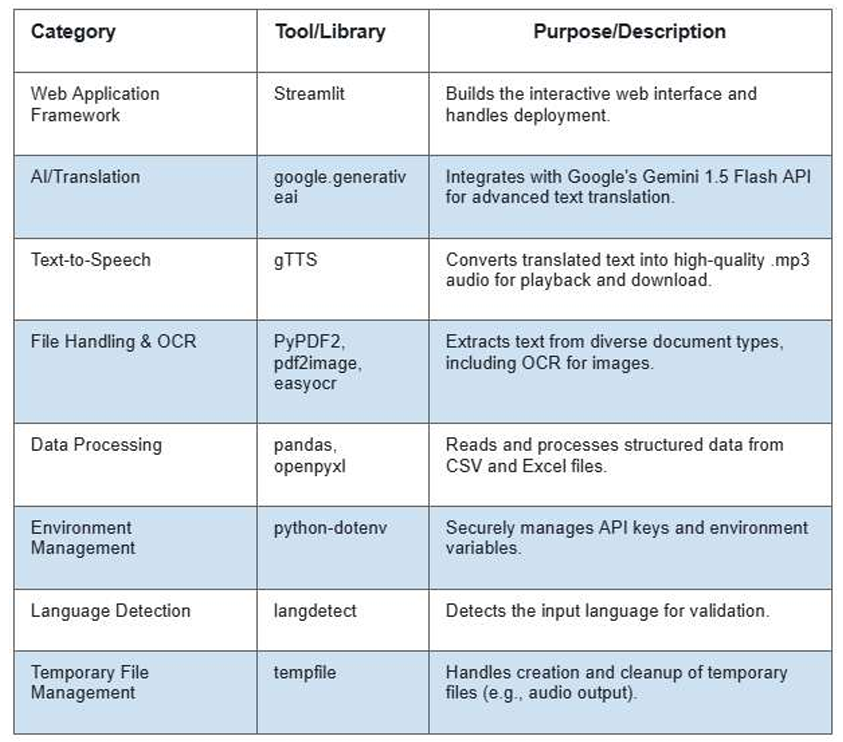
3. Technology Stack
4. Setup Instructions
4.1 Prerequisites
- Python 3.10
- pip
- Poppler utilities (for OCR PDF conversion)
4.2 Clone the Repository
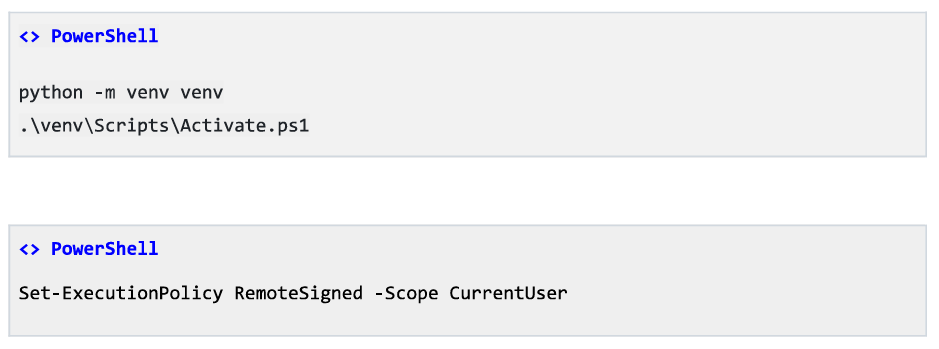
4.3 Create and Activate Virtual Environment
This will activate the virtual environment and we are now ready for development.
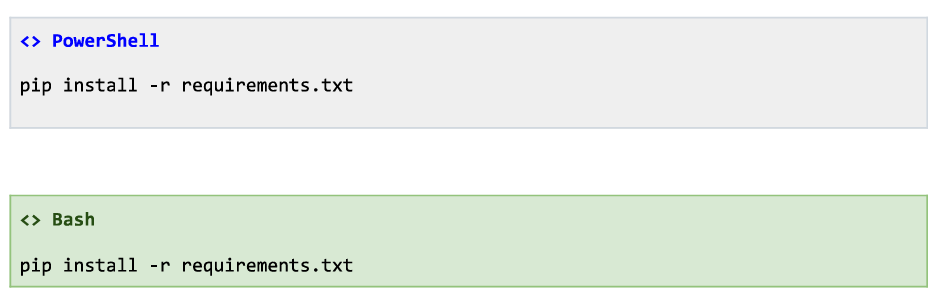
4.4 Install Dependencies
4.5 Configure Gemini API Key
- Generate a key from Google AI Studio. and go to Get API key
- Create a file named . env in the root of your project directory (trans date —and— speak/).
- Add your API key to this file in the format:
- The
python-dotenv package will securely load this key into the application.
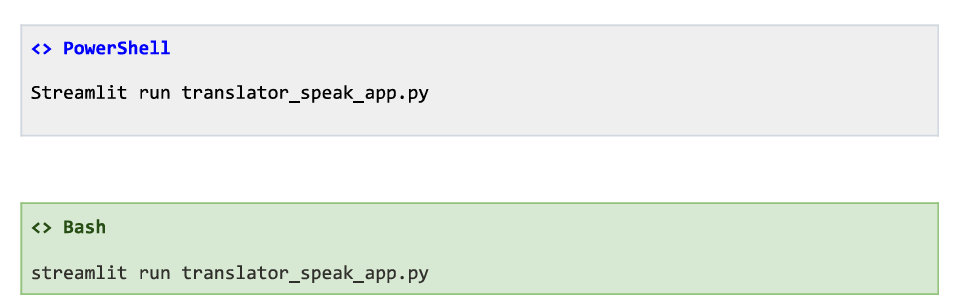
4.6 Launch the Application
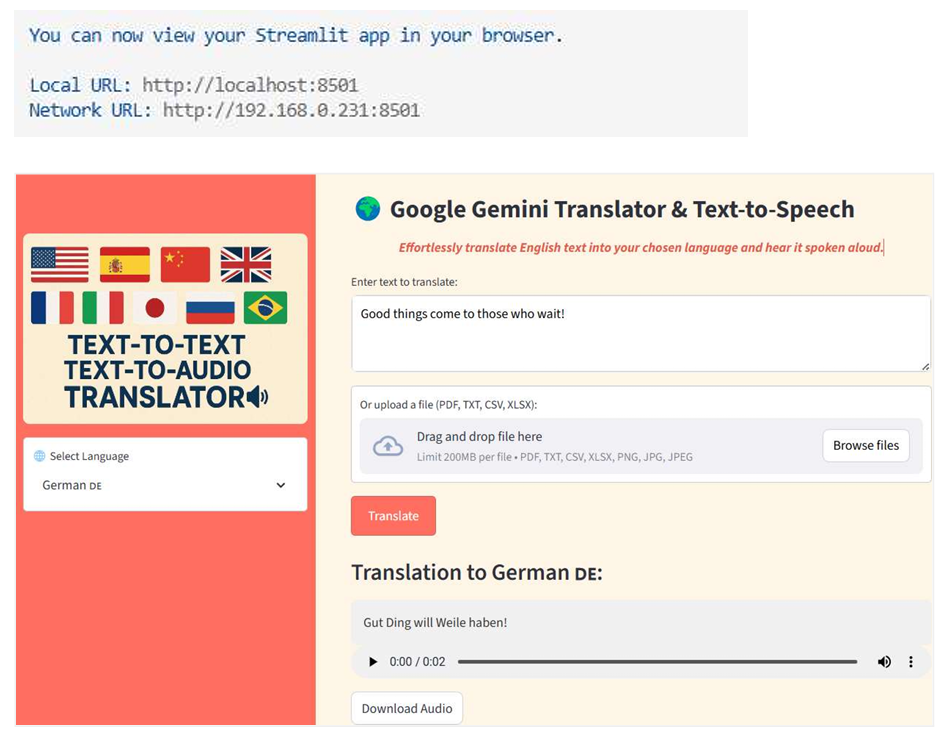
Powershell will launch a local server and the default browser will open the application:
5. Key Features
5.1 Elegant and Responsive Interface
- Custom styling with warm tones and an intuitive layout.
- Sidebar featuring a Language Selection drop down menu for choosing the target translation language.
5.2 Dual Input Options
- Text box
- File Upload : Supports dragging and dropping or browsing files in formats like PDF, TXT, CSV, XLSX, PNG, JPG, and JPEG for automatic text extraction and translation.
5.3 Smart File Parsing
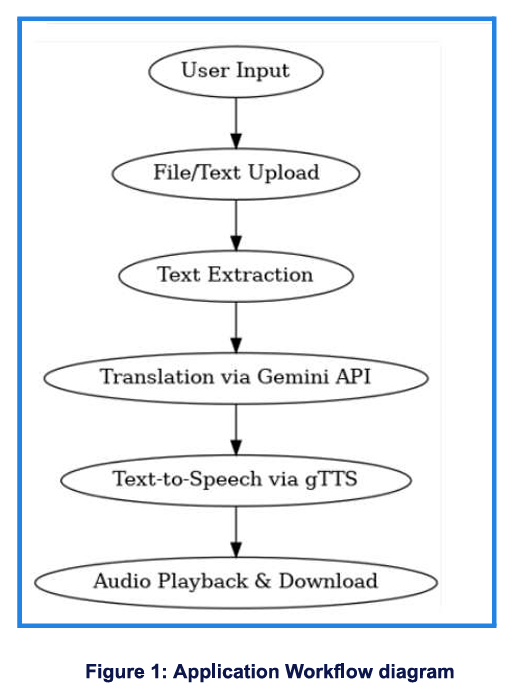
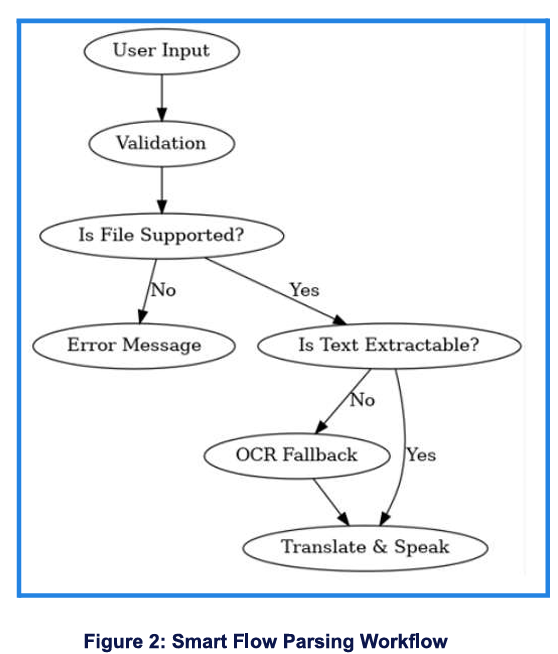
The application employs a robust text extraction pipeline to handle diverse input formats, intelligently determining the best method to retrieve content for translation. This includes direct text extraction from readable documents and an OCR fallback for image-based content.
This workflow illustrates the sequence:
- User Input & Validation: The system first processes any direct text or uploaded file. It performs basic validation checks for empty input.
- It then determines if the uploaded file's format (PDF, TXT, CSV, XLSX, PNG, JPG, JPEG) is supported. Unsupported files lead to an error.
- For supported files, the system attempts to directly extract text (e.g., from text-based PDFs, TXT, CSV, XLSX).
- If direct text extraction yields no content (e.g., image-only PDFs, pure image files), an OCR process is initiated using
easyocr to convert visual text into readable data.
- Once text is successfully extracted (either directly or via OCR), it proceeds to the translation and text-to-speech modules.
5.4 Multilingual Translation Powered by Gemini
- Users can choose from over 20+ languages via a flag-enhanced dropdown menu.
- Translates English text into selected language with high accuracy and natural phrasing leveraging Google's Gemini 1.5 Flash API.
5.5 Instant Text-to-Speech
- Translated text can be heard spoken aloud using realistic voice synthesis powered by gTTS.
- Includes a built-in audio playback bar and a Download Audio button for saving the.mp3 file.
5.6 Robust Error Handling and User Feedback
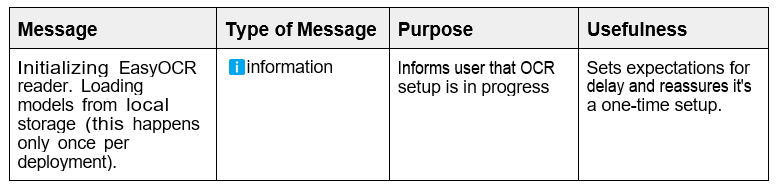
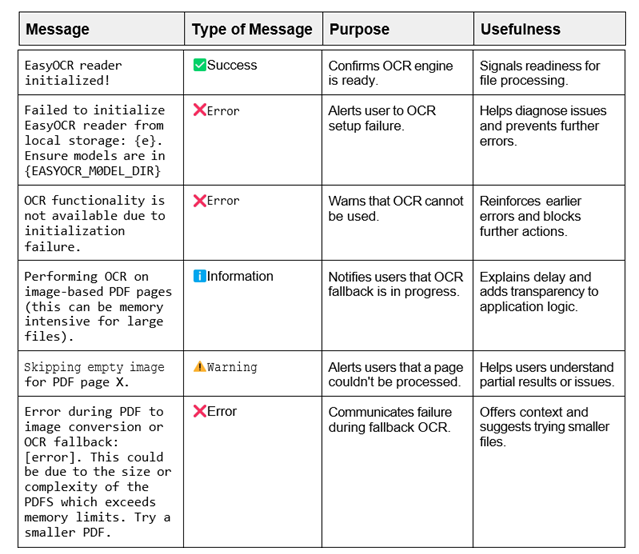
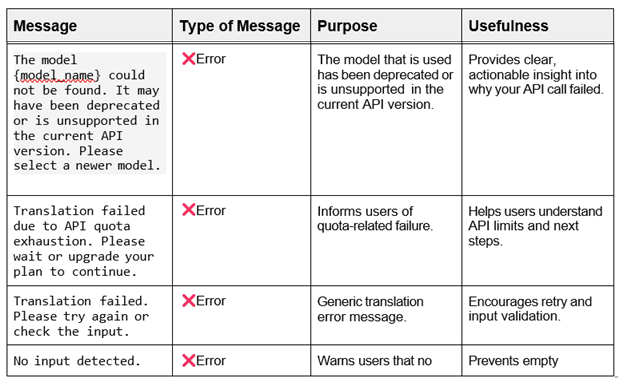
In this user-facing application which involves file uploads, OCR, translation, and audio generation, clear communication is key. Streamlit's built-in messaging functions therefore play a vital role in guiding users, managing expectations, and gracefully handling errors.
Here's an overview of how the application leverages these messages to foster a seamless and reliable user experience while encouraging confidence and ease of interaction:
6. Project Structure
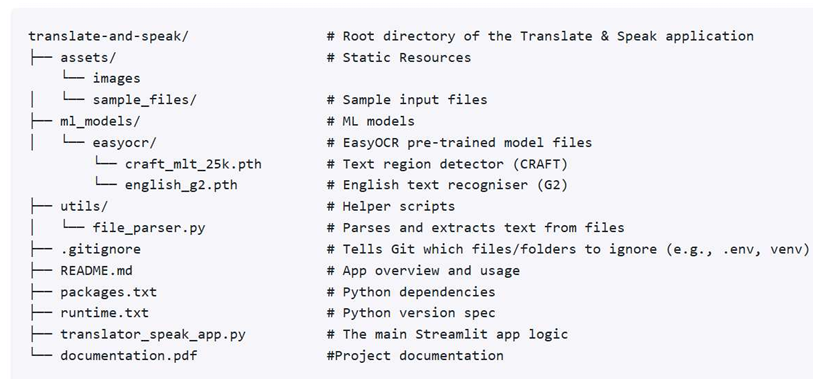
The project appears as follows in the dedicated Github remote repository:
At its core is a streamlit-based application that manages user interaction, file uploads, text extraction, translation and speech synthesis. There are sample test documents in various formats which can be used to test the application's OCR and translation capabilities.
A key component of the system is the pre-trained machine learning models housed in the m1 mode1s/easyocr directory. There are two models:
craf-t_m1t_25k.pth : responsible for text detection, identifying regions within images that contain text using the CRAFT (Character Region Awareness for Text detection) algorithm.eng11sh_g2.pth: once text regions have been detected, this model performs text recognition. It interprets the characters within the text regions and is specifically optimized for English language input.
The supporting script l11e pa rser . py is stored in the utils folder and will ensure that the input text strings/documents are properly processed before translation.
Configuration files like requ1rement s . txt and r unt1me . txt define the Python environment and dependencies, packages . txt lists system-level dependencies that need to be installed on the deployment platform and documentation files provide guidance for setup and usage.
7. Deployment to Streamlit Cloud
This lightweight application was built with Streamlit and the repository is public, allowing for easy deployment on Streamlit Community Cloud.
7.1 Key Benefits of Streamlit Community Cloud
- The application can be deployed at no cost.
- The deployment is very fast. We simply connect the GitHub repo and click Deploy.
- Since the application is tied to GitHub it makes for easier collaboration with others.
- Real-time updates as updates made to the code in GitHub are instantly reflected in the cloud.
- Streamlit Community Cloud allows users to safely store API Keys.
7.2 Configuration and Launch
First we navigate to the Streamlit sign‑in page and log in with a GitHub account.
7.2.1 Configure Deployment Settings
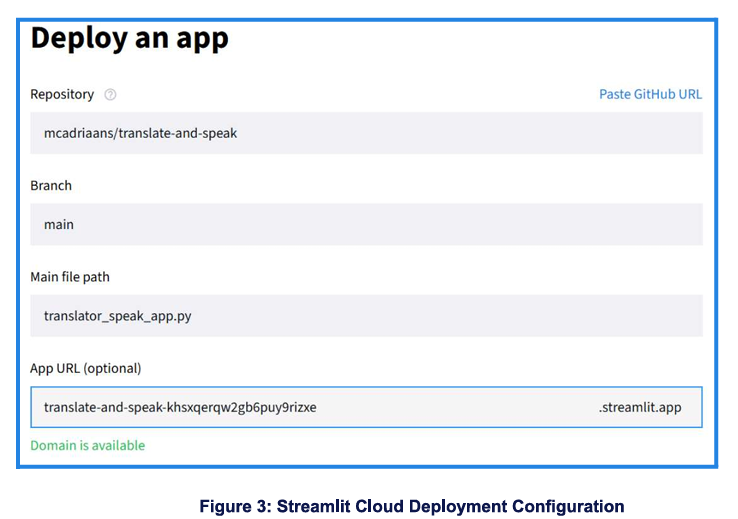
Click the “New application” button to access the “Deploy an application” dialog box.
Select the GitHub repository that contains the codebase, branch for deployment( typically main) and then specify the path to the main script.
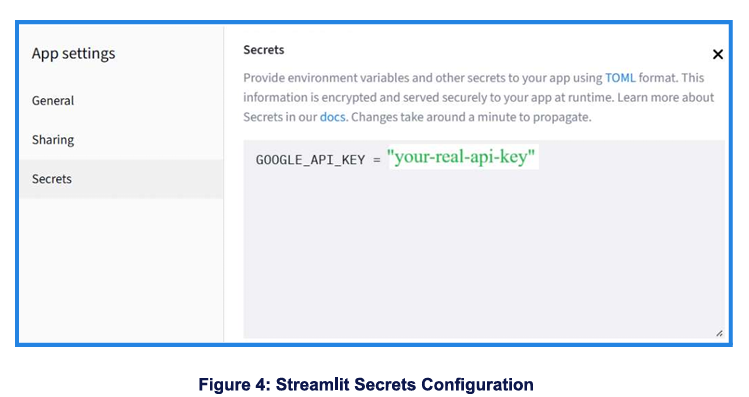
Streamlit Community Cloud does not directly support .env files for security reasons. Instead, environment variables (such as API Keys) can be securely stored using Streamlit Secrets.
From the deployed application navigate to “Manage application” (gear icon bottom right) then select “Secrets”. Now we can add the Google API key in TOML format.
8. Testing & Debugging
8.1 Local Deployment Testing
Executed a series of test cases using the various allowable file formats : PDF, TXT, CSV, XLSX, PNG, JPG and JPEG, to verify the accuracy of the parsing logic and robustness of the application.
Key findings and resolutions from these tests include:
8.1.1 OCR Library Deployment Challenges
Initially, pytesseract (Python wrapper for the Tesseract OCR engine) was used for OCR local deployment. However, when attempting to deploy to the Streamlit Community Cloud , the application consistently failed to extract and subsequently translate text from documents that require OCR processing.
- Root Cause: The
pytesseract library depends on the external Tesseract OCR engine, which poses compatibility challenges within Streamlit Community Cloud's containerized environment—an environment that restricts the installation of native binaries. As a result, deployments frequently encountered issues where the Tesseract executable was either absent or improperly configured, leading to OCR failures during runtime.
- Resolution: The OCR system was refactored to use
easyocr, resulting in improved reliability and seamless cloud deployment.
8.1.2 Image Upload Errors (File Pointer Issue)
❌Observed Error: Encountered the error message: "No input detected. Please type something or upload a file" even after successfully uploading image-based files, leading to confusion and failed translation attempts.
- Root Cause: The file pointer wasn't consistently reset prior to reading the files, leading to an empty buffer and subsequently, no text being passed to the OCR engine.
- Resolution: Implemented
uploaded_file.seek(0) in file_parser.py to explicitly reset the file pointer before any read operation on uploaded images, ensuring all content is captured.
8.1.3 Text File Encoding Issue
A UnicodeDecodeError (specifically UnicodeDecodeError: ’utf-8’ codec can't decode byte 0xb3 in position 622: invalid stad byt was encountered when attempting to decode content from certain .txt uploaded files . This prevented successful text extraction and subsequent translation for those specific files.
- Root Cause: The application's decoding logic for .txt files explicitly tried to interpret content using “utf-8“ encoding. However, some .txt files were actually encoded using a
different character set causing the operation to fail when it encountered unfamiliar characters.
- Resolution: The text decoding strategy in file_parser.py for .txt files was updated. Instead of a strict "utf-8" decode, it now uses "latin1" (ISO-8859-1) encoding. latin1 is a more permissive encoding that can successfully decode any single byte sequence without throwing an error, significantly improving compatibility with a wider range of .txt files, particularly those originating from older systems or different regional defaults.
8.1.4 Tested Edge Cases for Error Handling
The following scenarios were specifically tested to confirm the application's robust error handling as designed, verifying that the appropriate user feedback messages (as detailed in ›6 Robust Error Handling and User Feedb are displayed:
- Empty Input: Verified that the application correctly prevents processing when no text is entered or extracted from an uploaded file.
- Non-English Input: Confirmed that the application accurately detects non-English input and prompts the user to provide English text for translation.
- API Quota Exhaustion: During testing Gemini API quota was exceeded and the application gracefully handles this by displaying an informative error message.
- Unsupported Languages for gTTS: Verified that for target languages where gTTS lacks speech synthesis support, the application correctly omits audio generation and notifies the user of this limitation.
8.2 Streamlit Cloud Deployment Challenges & Solutions
We experienced deployment timeouts on Streamlit Cloud primarily due to the size of the EasyOCR models.
- 🧩 Challenge: When
easyocr.Reader initializes, it attempts to download large models (hundreds of MBs) from the internet if not found locally. Streamlit Cloud's free tier has a strict startup timeout limit (typically a few minutes). The model download time often exceeded this limit, causing deployment failures.
- 🪄 Solution: We addressed this by embedding the EasyOCR models directly into the Git repository via the directory
m1_mode1s/easyocr
How it Works: When the Streamlit Community Cloud clones the repository, these model files are already present on the server. By configuring easyocr.Reader to load models from the local model storage directory and combining it with Streamlit's
@st.cache resource decorator, the time-consuming network download is completely bypassed. This ensures the (still memory-intensive) model loading operation happens only once upon application deployment, significantly improving startup efficiency and reliability on the deployment platform.
9. Limitations
- gTTS Language Support : For example, although the Gemini API successfully translated English into Zulu(another language widely spoken in South Africa); the library was unable to generate audio output for the translated text.
- File Size Constraints : Maximum upload size is 200MB. This is ideal for or formats but could be limiting if users upload large image-based or media rich scans
or multipage documents.
- No Real-Time Preview: Users must wait for translation and audio generation before seeing results.
- Translation Accuracy in Gemini 1.5 Flash: The multimodal language model is known to be optimized for responsiveness and cost efficiency, it can however sometimes, generate overly literal translations(directly translates word for word) that fail to adequately capture idiomatic nuance and compromise the comprehensibility of the translation.
- No Voice Customization: gTTS does not support pitch, speed or voice selection.
10. Notable Challenges
- File Parsing : Handling diverse file formats and extracting clean text
- Image OCR Reliability: The application can occasionally encounter inconsistent text extraction from image files (.png, .jpeg, .jpg) due to factors such as image quality, font style, text orientation, compression artifacts, and contrast levels. This can lead to the error message: "No text found in the image". The error is displayed in the selected language.
- API Rate Limits: Managing Gemini API usage within quota constraints.
- Language Compatibility: Ensuring gTTS supports the selected translation language.
- No GPU available in Streamlit Community Cloud: Most cloud-hosted Streamlit environments don't provide GPU access, this can tremendously slow down the application's performance.
11. Future Enhancements
- We can look to add support for additional file types (e.g., DOCX, RTF, HTML etc.)
- Look to enable batch processing for multiple files.
- Add a real-time translation preview before audio generation.
- Store previous translations for reuse or review.
- Offer voice customization options (pitch, speed, gender).
Conclusion
This project stands as a testament to the capabilities of Generative AI in creating impactful language tools. The application is well-positioned for continued growth and refinement, aiming to further expand its functionalities and reach.